
Appearance
Split with Maytes for Shopify
Accept Split with Maytes on your Shopify store — no code required. Your customer's group splits the cost of the order, while you're paid the full amount up front. The organizer checks out and pays their share, everyone else pays theirs through Maytes, and Maytes collects the rest and covers anything unpaid.
This guide is for Shopify store owners and staff. If you integrate a custom storefront instead, see How it works and the Quickstart.
Australian stores
Split with Maytes on Shopify is available to stores based in Australia transacting in AUD.
How it works on Shopify
- At checkout, your customer chooses Split with Maytes as the payment method.
- The order is placed in your store as payment pending, and the customer is invited to pay their share. Their friends get a secure link to pay theirs.
- Once the group finishes paying — or the organizer's card is charged for anything unpaid — Maytes marks the order as paid in Shopify automatically.
- You're settled the full order total on your normal payout schedule.
You stay in Shopify the whole time; there are no API keys or webhooks for you to manage.
Before you start
Maytes sets up your account before you install, so the app can connect your store to it.
- Contact Maytes (support@maytes.co) to have your merchant account created. We provision your Maytes account and your Stripe payout account, and send you your install link.
- Complete your Stripe payout setup using the link we provide, so you can be paid out (see Onboarding).
If you install before your account is set up
The app will show "awaiting setup — contact Maytes" and won't activate. That just means your Maytes account isn't ready yet — reach out and we'll finish the setup.
1. Install the app
Split with Maytes is a private (unlisted) Shopify app, so you install it from a direct link rather than the Shopify App Store.
While signed in to your Shopify admin, open the install link Maytes gave you in your browser. It looks like this, with your store's domain filled in:
https://api.maytes.co/api/shopify/auth/install?shop=your-store.myshopify.com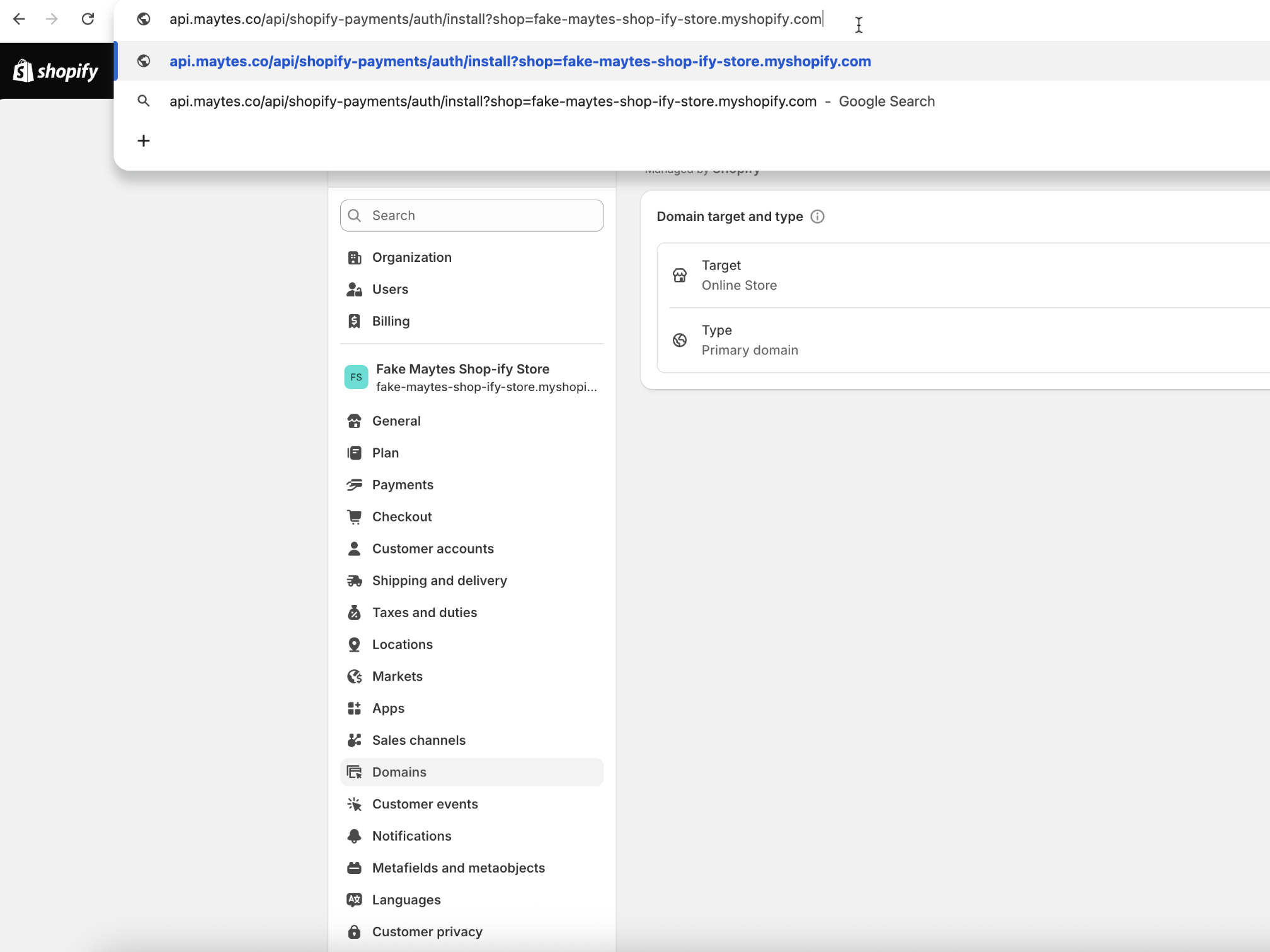
Approve the requested permissions. You'll land back in your Shopify admin with the app installed and connected to your Maytes account.
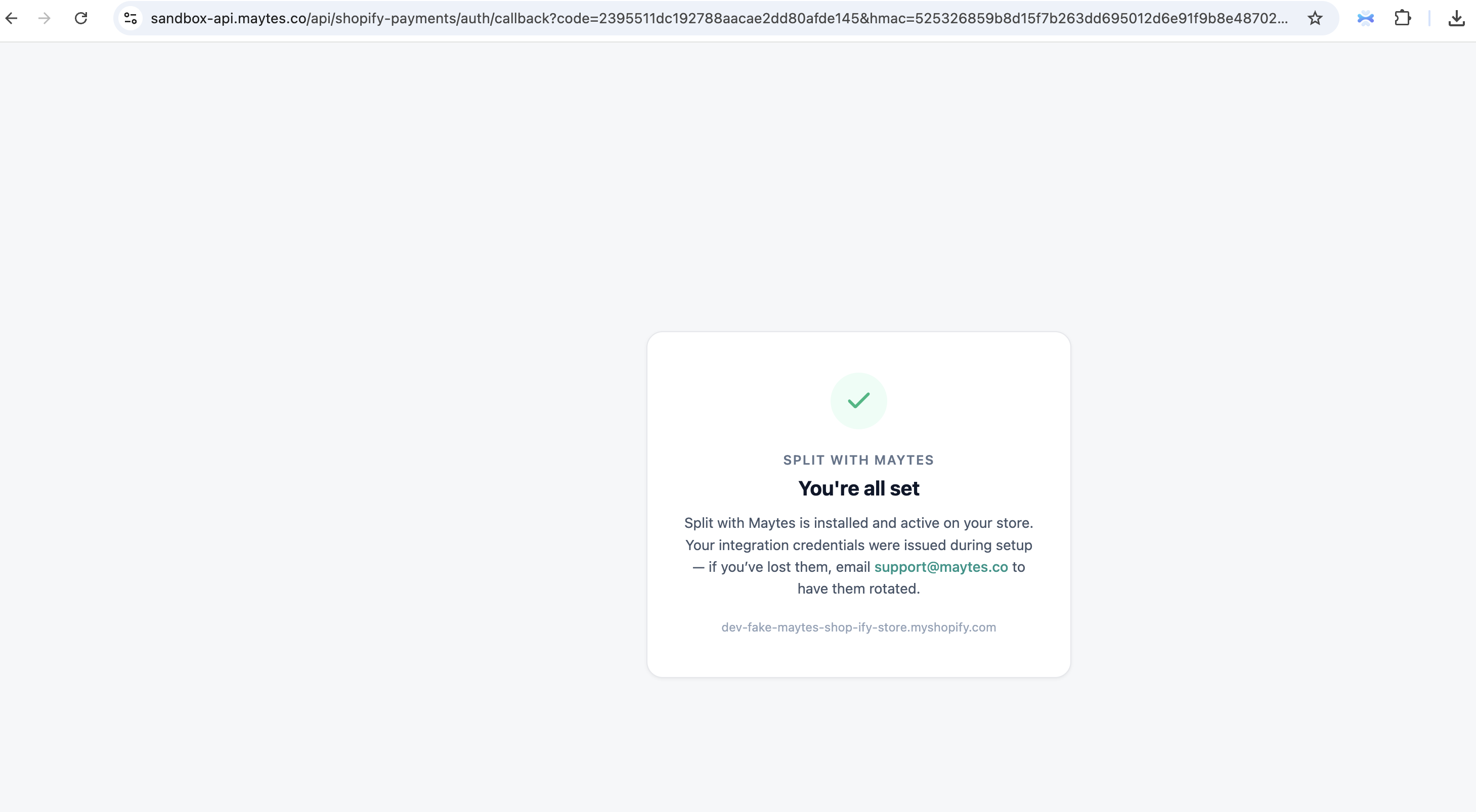
No keys to copy
Shopify stores don't need any API keys or credentials — the connection is handled for you. You can reopen the app any time from Apps → Split with Maytes to check your status.
2. Add the "Split with Maytes" payment method
Your customers pay by choosing a custom (manual) payment method at checkout. You create it once.
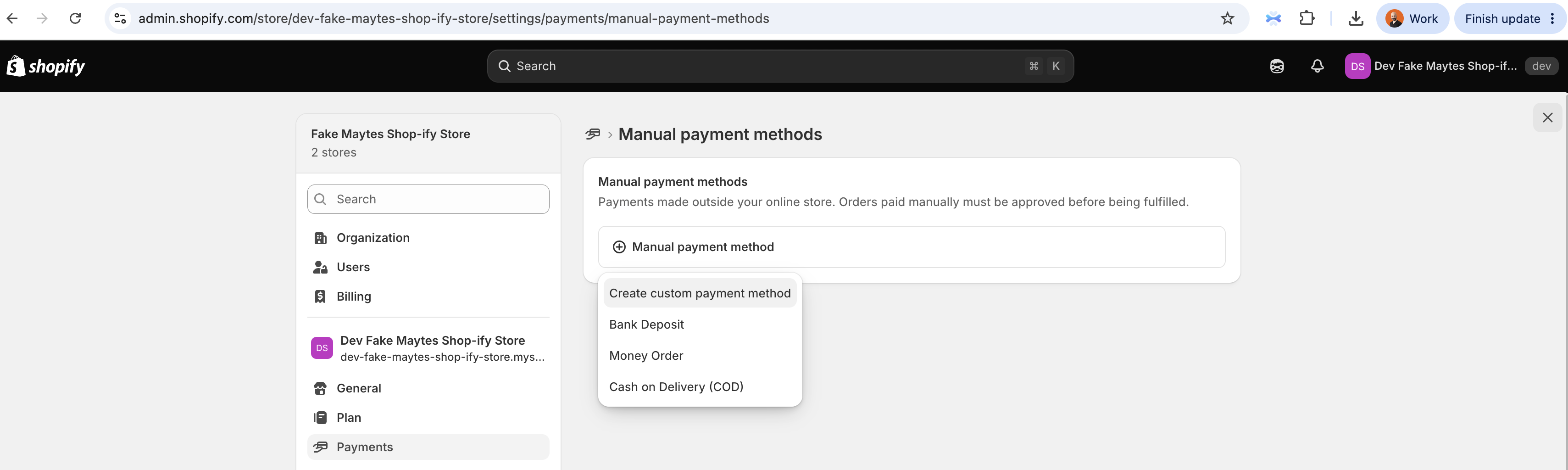
- In your Shopify admin, go to Settings → Payments.
- Under Manual payment methods, choose Manual payment method → Create custom payment method.
- Set the Custom payment method name to exactly
Split with Maytes, then Activate.
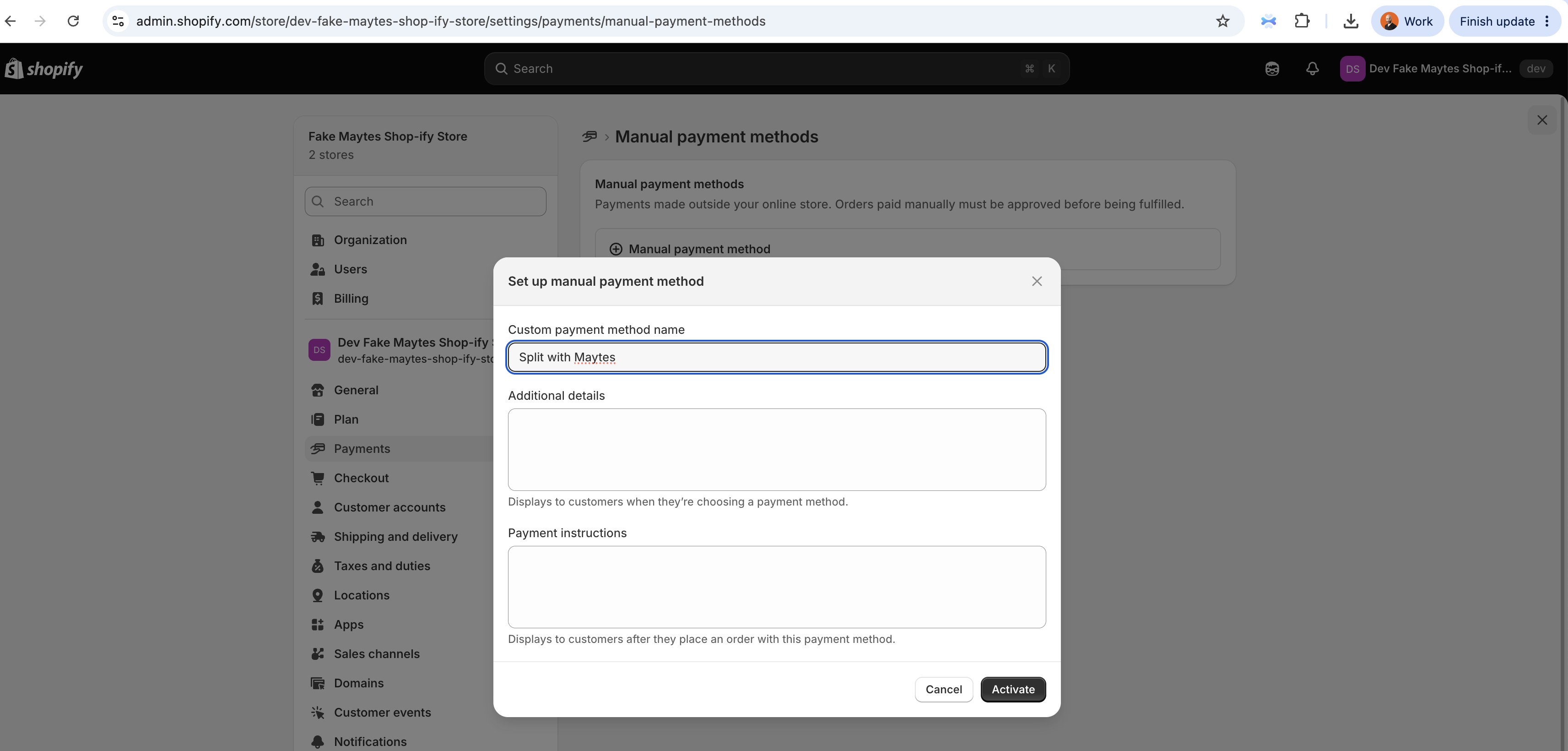
The name must be exactly "Split with Maytes"
Maytes recognizes orders by this payment method name. If it's spelled differently, orders placed with it won't be picked up and can't be reconciled or marked as paid. Use Split with Maytes — no extra words. You can leave the optional details and instructions fields blank.
3. Add the Split with Maytes block to your order pages
Adding the app's block gives your customers a "Pay your share with Maytes" button after they order. Add it to both the Thank you page and the Order status page.
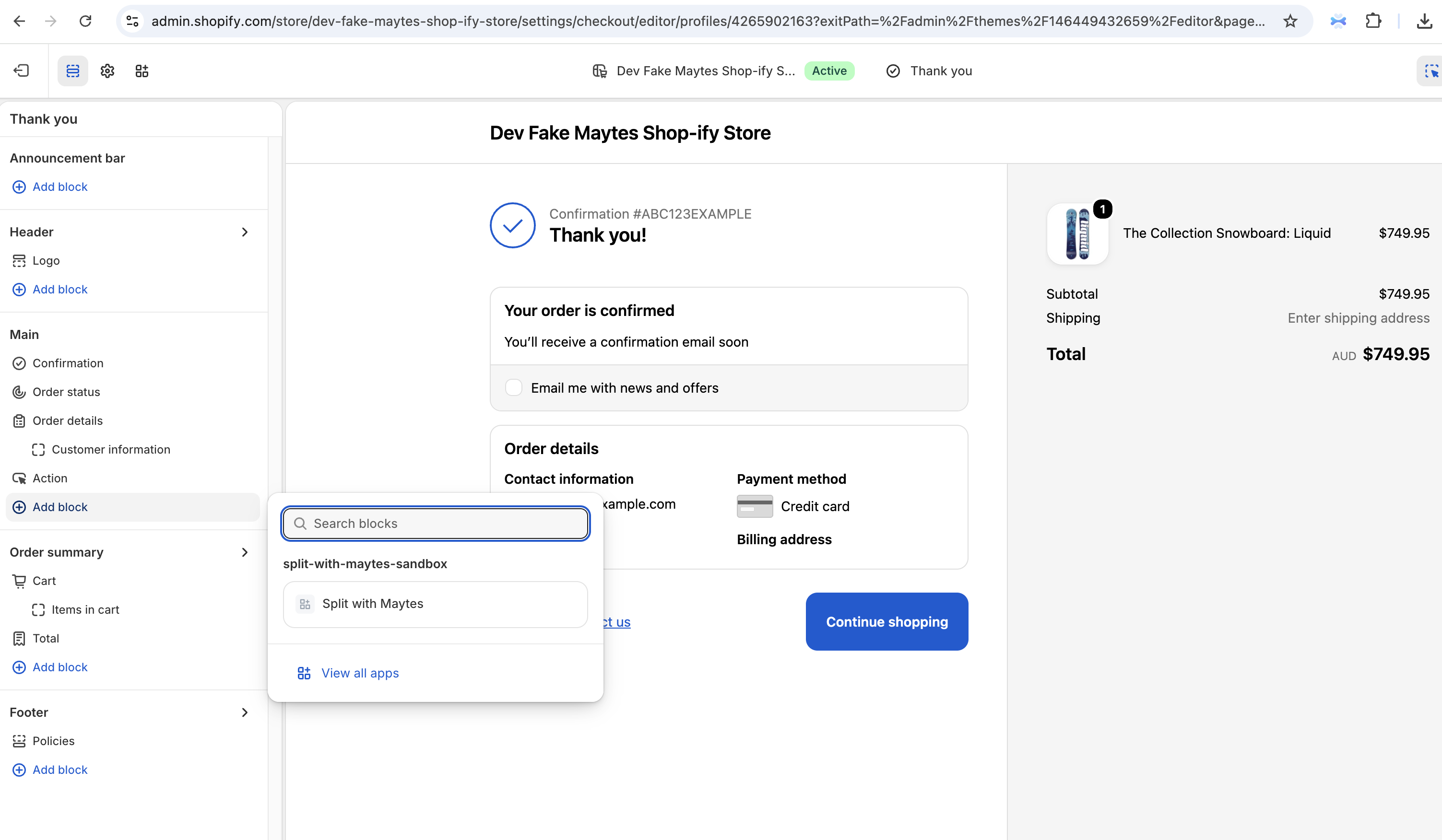
- Go to Settings → Checkout and open Customize to launch the checkout and accounts editor.
- Switch to the Thank you page. Choose Add block, and under split-with-maytes select Split with Maytes.
- Switch to the Order status page and add the Split with Maytes block there too.
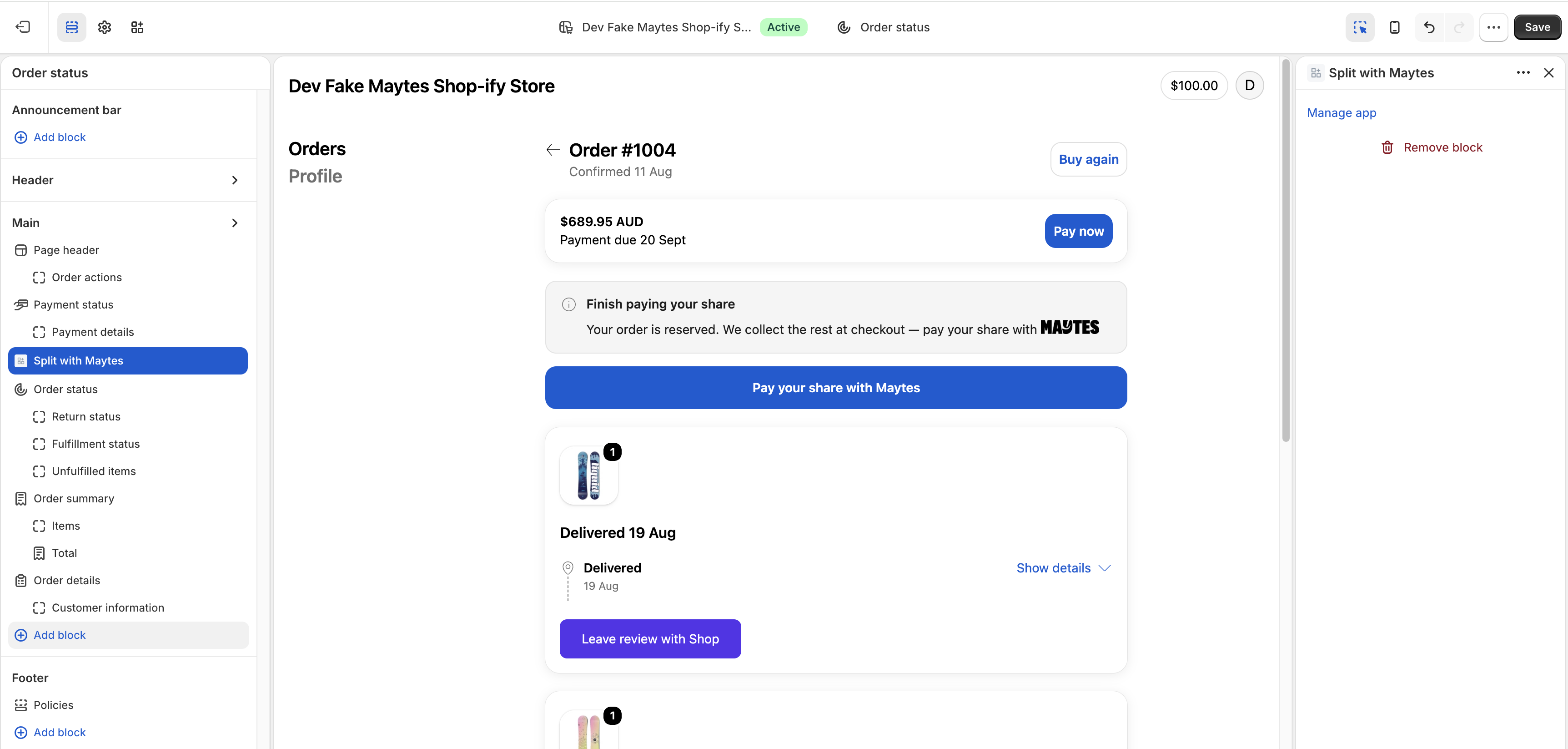
- Save.
Update both pages
Add the block to the Thank you page and the Order status page so your customers can pay their share right after ordering and any time they return to their order.
4. Test your setup
Place a test order to confirm everything is connected.
- Add a product to the cart and go to checkout. Split with Maytes appears as a payment option.
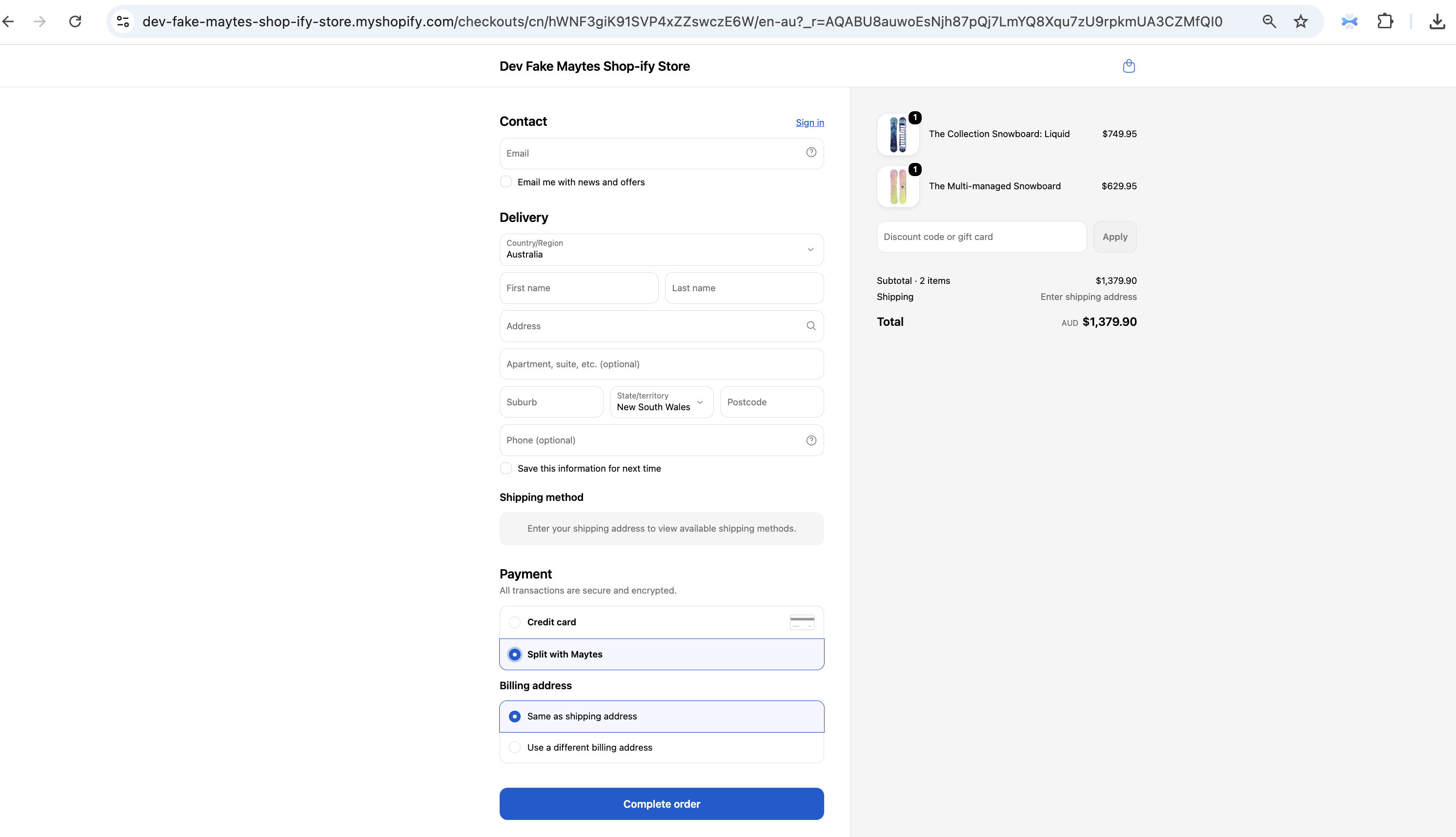
- Complete the order. In your Shopify admin the order shows as payment pending.
- On the Thank you page, the Pay your share with Maytes button appears — this is your customers' path to pay their share and invite their group.
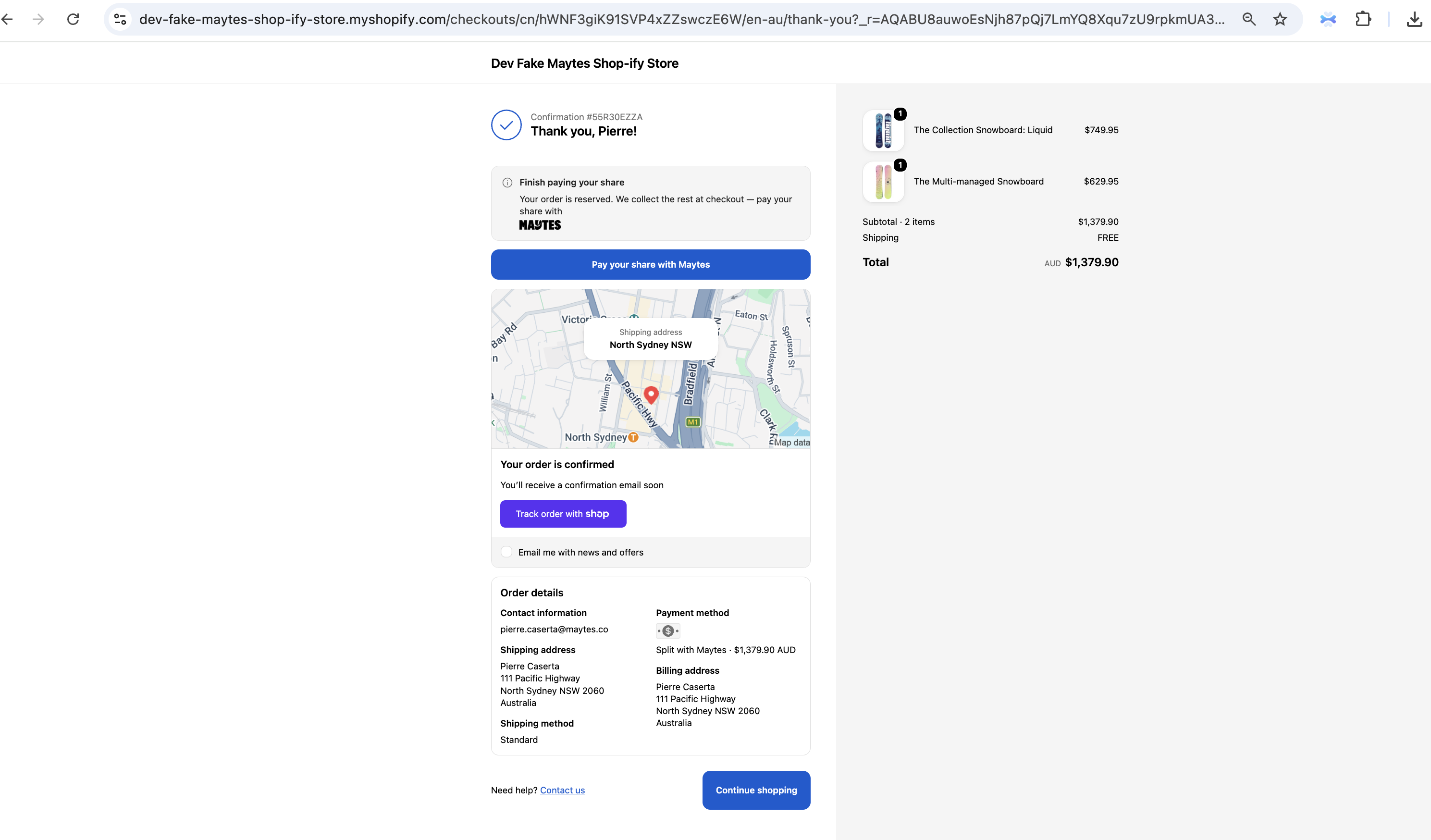
- When the group finishes paying, the order is marked as paid automatically in Shopify.
Don't mark Split with Maytes orders as paid yourself
Maytes marks the order as paid once payment is collected. Marking it paid manually will misreport the order — always let Maytes update the status.
What your customers experience
- They choose Split with Maytes at checkout and confirm the order.
- Their order is reserved, and they're prompted to pay their share; their friends receive a secure link (via SMS or WhatsApp) to pay theirs.
- Maytes sends reminders and collects each share. If a share isn't paid in time, the organizer's card is charged for the remainder.
- Either way, you receive the full order total.
Managing orders
- Fulfilment: wait until the order shows as paid (Maytes updates this automatically) before you fulfil, the same as any manual-payment order.
- Status: check your connection any time from Apps → Split with Maytes.
- Refunds and cancellations: cancel an unpaid order in Shopify as usual. For refunds on paid orders, see Refunds or contact support@maytes.co.
Troubleshooting
| What you see | What it means |
|---|---|
| App shows "awaiting setup — contact Maytes" | Your Maytes account isn't provisioned yet. Contact us and we'll finish setup, then reopen the app. |
| Orders paid with Split with Maytes stay pending | Check the payment method is named exactly Split with Maytes. Any other name isn't recognized. |
| No "Pay your share" button after checkout | Add the Split with Maytes block to the Thank you and Order status pages (step 3). |
Need help
Email support@maytes.co — we're happy to help you get set up.